Distractors and Alternative Answers for Drag & Drop Questions
We are excited to announce a significant upgrade specifically for our Drag & Drop (Wordlist) exercises! We've added two powerful features that give educators more control and flexibility when designing interactive word bank tests: Distractors and Alternative Correct Answers.
These updates are designed to help you create more nuanced assessments that truly challenge your students' understanding of vocabulary and grammar in context.
1. Add Distractors (Extra Words)
Previously, our wordlist blocks only contained the specific words needed to fill the gaps. While effective, this sometimes made it too easy for students to solve the puzzle through simple elimination.
With the new Distractors feature, you can now add "extra" words to your word bank. These are words that do not belong in any of the gaps but are provided as plausible alternatives.
Why use distractors?
- Prevent Elimination Guessing: Students can no longer simply match the last remaining word to the last gap.
- Test Nuance: Include words with similar meanings to see if students can identify the correct usage for a specific context.
- Increase Difficulty: Make vocabulary checks more rigorous for advanced learners.
2. Alternative Correct Answers for Every Gap
While alternative answers have long been a favorite feature for our Fill-in-the-blank questions, we have now extended this powerful functionality to the Drag & Drop format. Context is everything in language learning, and sometimes more than one word is a perfectly valid choice for a single blank.
You can now specify multiple correct answers for any gap in a wordlist block. If a student drags any of the accepted words into that gap, it will be marked as correct.
How this improves your tests:
- Support for Synonyms: Accept "happy," "joyful," or "cheerful" for the same gap.
- Grammar Variations: Accept different valid tenses or parts of speech if the context allows.
How to use these features
1. First, click inside the text area and click on the button "Insert Wordlist Block" in the toolbar above. Below the "Wordlist block" area that now got created, you can add some text.

Then select or double click on the word "wash" and click on "Add To Wordlist". Do the same with "eat".

To add Distractors
Simply click on your wordlist block and use the new "Additional Items" field to type in the extra words you want to appear in the bank.
In this example we are adding "clean" (which we'll use as an alternative correct answer) and "brush" (which is an incorrect distractor).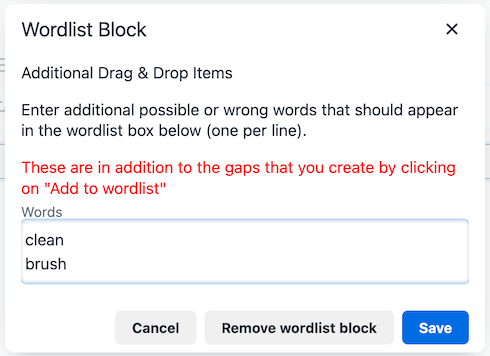
To add Alternative Answers
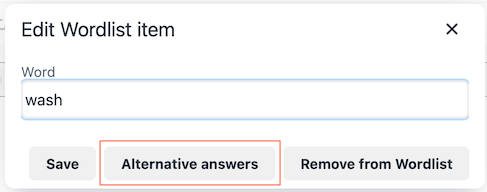
Select a word that you've turned into a "gap," and you'll see an option to add alternative correct answers. In this example, we clicked on "wash":
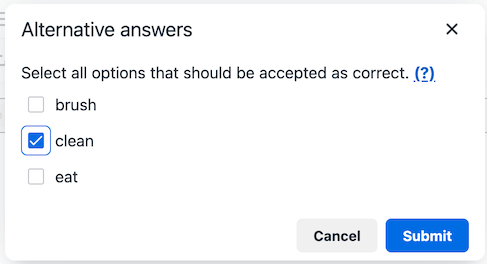
You can now check "clean" was an alternative answer for "wash":
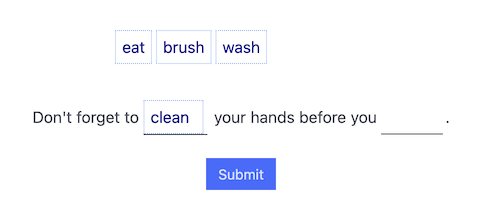
This is how the exercise looks like:
Posted by Clozetesting